
Core Web Vitals Audit: How to Test and Fix Shopify Stores
Run a Core Web Vitals audit on your Shopify store: segment field data, diagnose LCP, INP and CLS, and fix the biggest problems first.
The usual advice for a Core Web Vitals audit is to run your home page through PageSpeed Insights and fix whatever lowers the score. That's a useful debugging exercise, but it's a weak basis for deciding whether your Shopify store performs well for shoppers. Start by asking which visits the measurements represent, then investigate the templates where those shoppers encounter delays.
For a merchant rebuilding a store or moving to Shopify, the useful deliverable isn't a screenshot of a green score. It's a template-level record of performance, measurement confidence, confirmed causes, and the next change worth shipping.
Table of Contents
- Core Web Vitals Thresholds to Audit Against
- Which Shopify Templates to Test First
- How to Run the Audit Step by Step
- Diagnosing What Causes Each Failing Metric
- Fix the Problems in Priority Order
- Why a Passing Lab Score Can Still Hide Problems
- Run Your First Audit This Week
<a id="core-web-vitals-thresholds-to-audit-against"></a>
Core Web Vitals Thresholds to Audit Against
A Core Web Vitals assessment passes when every assessed metric meets Google's Good threshold at the required percentile, not when an average score looks healthy.
Google's Core Web Vitals documentation sets the assessment at the 75th percentile, meaning at least 75% of observed visits must meet each relevant threshold: LCP of 2.5 seconds or less, INP of 200 milliseconds or less, and CLS of 0.1 or less.
Core Web Vitals thresholds for mobile and desktop
| Metric | Good | What it measures |
|---|---|---|
| LCP | 2.5 s or less | Loading speed of the main content |
| INP | 200 ms or less | Responsiveness to clicks, taps and key presses |
| CLS | 0.10 or less | Unexpected layout movement during the visit |
Record the reporting tool's Needs improvement or Poor classification alongside any result outside the Good range. Keep the actual measured value, too, because a status label alone doesn't show how far the experience is from acceptable.
The percentile rule changes how you interpret a result. A fast visit from your office doesn't disprove a mobile field failure, and a slow local run doesn't establish how the whole audience performs. You're examining a distribution of experiences, not selecting the test result you prefer.
<a id="assess-the-experience-not-a-blended-score"></a>
Assess the experience, not a blended score
LCP answers a loading question: when does the main visible content appear? On Shopify, investigate the element identified by the browser rather than assuming it's always the promotional hero. A product image, text block, or another large visible element may be the relevant target.
INP answers an interaction question: how promptly does the page paint after a shopper acts? A product page can render quickly yet respond poorly when someone selects a variant or adds an item to the cart. An audit that stops after loading misses that distinction.
Google's documentation also records that INP replaced First Input Delay in March 2024, extending responsiveness assessment beyond the initial interaction. Don't reuse an old FID report as evidence that today's product-form interactions are healthy.
CLS addresses stability. A page may appear quickly but become frustrating when an image, review block, or banner pushes content away from the shopper's intended target.
Audit rule: Don't average away a failing metric. A responsive page with unstable content still needs work.
<a id="keep-the-reporting-scope-visible"></a>
Keep the reporting scope visible
Search Console uses real-visit information from the Chrome User Experience Report and groups URLs according to their weakest metric. Those groups are useful starting points, but they aren't a substitute for your own template inventory.
Keep mobile and desktop results separate. Map example URLs from each reported group to their Shopify templates, and avoid assuming every URL in a group uses identical sections or apps.
Before running diagnostics, copy the threshold table into your audit sheet. Add columns for reporting scope, device, template, failing metric, and confidence, so every subsequent test answers a defined question.
<a id="which-shopify-templates-to-test-first"></a>
Which Shopify Templates to Test First
Follow the purchase path rather than the navigation menu. Your audit needs to cover how shoppers discover products, evaluate them, select options, and reach the cart, because shared theme styling doesn't mean shared performance behavior.
Use the following culprits as inspection targets, not predetermined diagnoses. A review app isn't responsible merely because it exists on a slow page.
Shopify templates to test and their usual culprits
| Template | Why it matters | Usual culprit |
|---|---|---|
| Home page | First impression and hero image | Oversized hero image, slider scripts |
| Collection and search | Filters, grids and infinite scroll | Lazy-loaded images, filter scripts, shifting product cards |
| Product page | Purchase-intent experience | Variant selectors, review widgets, synchronous add-to-cart logic |
| Cart | Interaction-heavy and revenue-critical | Cart drawer scripts, upsell apps, delayed button response |
| Campaign landing page | Concentrated paid-traffic entry point | Tracking tags, large promotional media, consent banners |
| Account and checkout-adjacent pages | Potential field-data gaps and high-friction tasks | Injected content, consent prompts, third-party widgets |
<a id="choose-representative-urls-deliberately"></a>
Choose representative URLs deliberately
Begin with a representative URL for each template, then expand wherever features differ. A simple product page won't adequately represent a configurable product with subscription controls, personalization, and conditional pricing.
Use your store's analytics to choose pages shoppers visit. Include important campaign destinations even if they don't appear in the main menu, and note whether a collection relies on filtering, pagination, or infinite scrolling.
For each selected URL, write a short task:
- Collection: Apply a filter and open a product.
- Product: Change a variant and add the item to the cart.
- Cart: Update quantity, remove an item, and continue toward checkout.
- Campaign: Dismiss or accept consent and use the primary offer button.
These tasks turn a list of URLs into reproducible buying journeys. They also prevent a passive loading test from standing in for an interaction audit.
<a id="separate-theme-ownership-from-page-importance"></a>
Separate theme ownership from page importance
Account and checkout-adjacent experiences still belong in the inventory, even when their measurement coverage or implementation access differs. Record whether the relevant component belongs to the theme, an app, or a platform-controlled surface before assigning a fix.
Mark missing field evidence explicitly rather than treating an empty report as a clean result. A critical journey can require manual investigation even when it isn't represented in public field reporting.
Start diagnostic work on mobile, where constrained devices and connections are useful stress conditions, then test desktop separately. Don't assume mobile must be worse in your store. Let segmented production measurements establish that.
<a id="how-to-run-the-audit-step-by-step"></a>
How to Run the Audit Step by Step
Use field measurements to identify the problem and controlled tests to explain it. The PageSpeed Insights documentation distinguishes real-user field results from simulated lab results, so a strong lab score can't substitute for production evidence.
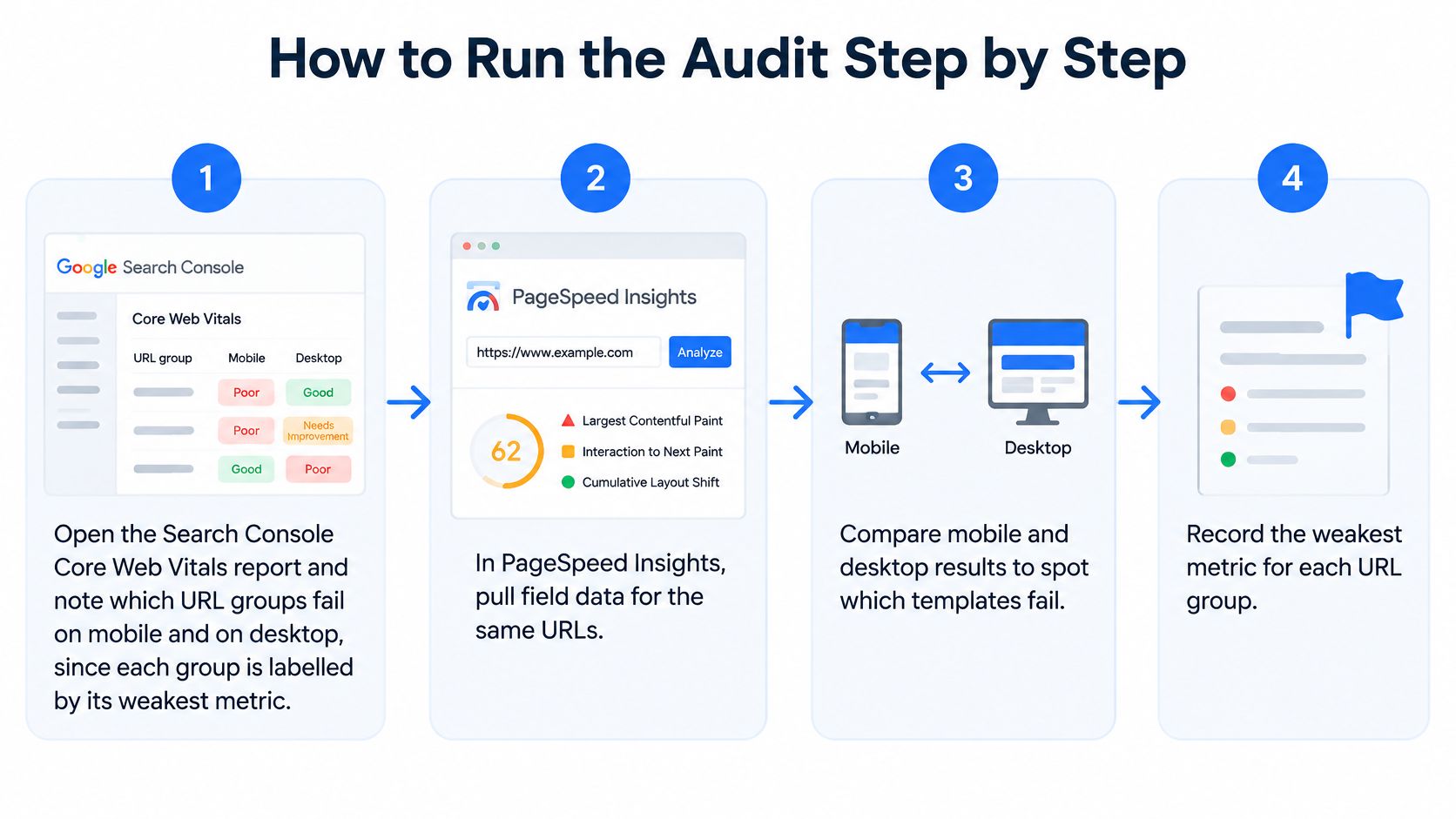
- Open Search Console. Export failing mobile and desktop groups. Match their example URLs to your template inventory.
- Inspect PageSpeed Insights field results. Test the selected URLs and record the metric values. Check whether the displayed scope is the URL or the origin.
- Flag missing coverage. If URL-level evidence is absent, mark the template's measurement confidence as low. Don't substitute a site-wide result without labeling it.
- Reproduce the failure. Use Lighthouse or Chrome DevTools with a documented mobile device, network, and CPU-throttling configuration. Keep those settings consistent for comparison.
- Inspect rendering. Locate the LCP element in the performance trace. Examine when its resource is discovered and requested.
- Record interactions. Capture variant selection and add-to-cart in DevTools. Inspect main-thread work around delayed feedback.
- Inspect layout shifts. Select shift events and inspect affected nodes. Check which preceding insertion or resize caused the movement.
- Add production monitoring. Instrument a real-user monitoring collector, such as one using the web-vitals library. Keep its population and collection method documented.
- Save the evidence. Record URL, template, device, market, metric, value, scope, and suspected cause. Compare the trace with the field symptom before editing code.
<a id="diagnosing-what-causes-each-failing-metric"></a>
Diagnosing What Causes Each Failing Metric
A failing metric identifies a symptom, not the responsible app or line of Liquid. Confirm the mechanism before changing code, especially when several integrations run on the same template.
Keep a trace, a reproducible action, and a specific explanation together. “Product page is slow” isn't actionable; “variant selection runs synchronous work before the price and availability update can paint” gives a developer something to investigate.
Metric symptoms, likely causes and checks
| Metric | Symptom in the trace | Likely cause | How to confirm |
|---|---|---|---|
| LCP | Main element loads late | Oversized image, lazy-loaded hero, slow server response | Check LCP element priority and time to first byte |
| INP | Long tasks delay the paint after a click | Third-party app scripts, synchronous product-form logic | Profile the interaction handler during add-to-cart |
| CLS | Layout shifts after content appears | Images without dimensions, late banners, reviews or consent UI, unstable fonts | Read the source node of each shift |
<a id="trace-the-loading-delay-before-resizing-assets"></a>
Trace the loading delay before resizing assets
For LCP, separate waiting for the document, waiting to discover the resource, downloading it, and waiting to render it. Those problems need different remedies.
Open the Network panel alongside the performance recording. Inspect the main document's time to first byte, then locate the LCP resource and examine its initiator, timing, and priority.
Say a campaign hero is already appropriately sized but doesn't get requested until a slider initializes. Compressing it further won't address the discovery delay. Conversely, changing request priority won't eliminate unnecessary image transfer if the browser receives an oversized asset.
On Shopify, investigate theme output and app involvement before prescribing server changes. Record which part of the delay your team controls and which requires a different escalation route.
<a id="profile-the-action-that-feels-unresponsive"></a>
Profile the action that feels unresponsive
For INP, record the actual shopper action rather than relying only on a page-load audit. Select a variant, submit the product form, and open the cart drawer while capturing a performance trace.
Inspect the main-thread activity surrounding the delayed paint. Follow expensive callbacks to their source, looking for repeated DOM updates, synchronous calculations, or third-party work competing with the interaction.
Distinguish essential work from work that can happen later. Updating the selected variant and availability belongs in the immediate response; unrelated analytics or recommendation processing shouldn't prevent visible feedback.
Understanding how sections and app blocks fit together helps assign ownership. The Shopify website builder explanation provides context for that theme-level investigation.
<a id="find-what-caused-the-movement"></a>
Find what caused the movement
For CLS, inspect the shift event and the content around it. The node that moved isn't necessarily the node responsible: a product form may shift because a review summary was inserted above it.
Check image dimensions, embed containers, banner insertion, and font changes. Reproduce the relevant consent state and allow delayed widgets to appear rather than stopping the recording immediately after the initial render.
Write the confirmed cause beside the failing template. If the trace doesn't establish it, keep the label as a hypothesis and specify the next test.
<a id="fix-the-problems-in-priority-order"></a>
Fix the Problems in Priority Order
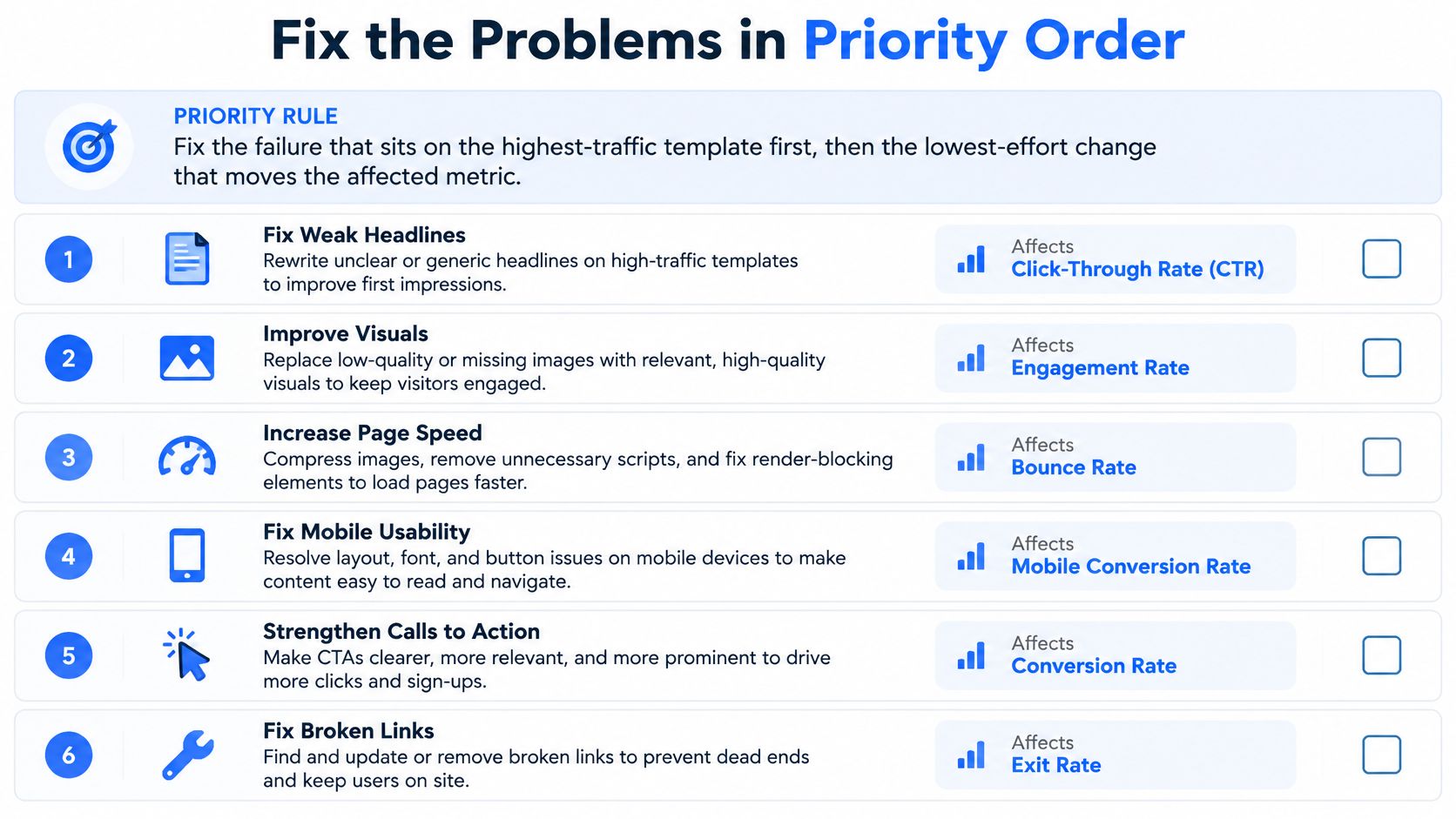
Fix the confirmed failure on the highest-traffic affected template first, then choose the lowest-effort change that directly addresses it. Use actual store traffic and journey importance, not the order of recommendations in a generic performance report.
A cart interaction may deserve priority over a cosmetic home-page improvement even when fewer visits reach it. Make that decision explicitly, using the affected task and the evidence you collected.
Shopify fixes ranked by metric and effort
| Fix | Metric helped | Effort | Do it first when |
|---|---|---|---|
| Resize and compress the hero image | LCP | Low | The LCP element is a large image on the home or campaign page |
| Stop lazy-loading above-the-fold images | LCP | Low | The hero image loads after the page has already rendered |
| Set width and height on images and embeds | CLS | Low | Product cards or banners shift as images arrive |
| Reserve space for reviews and consent banners | CLS | Medium | Content appears above the fold after the first paint |
| Remove or defer unused app scripts | INP | Medium | Long tasks appear on product or cart interactions |
| Inline critical CSS and defer the rest | LCP | Medium | Render-blocking CSS delays rendering of the main content |
Treat the effort labels as planning estimates, not commitments. A small attribute change can be straightforward, while an app-controlled component may require vendor coordination or a replacement implementation.
<a id="prefer-narrow-changes-with-broad-coverage"></a>
Prefer narrow changes with broad coverage
Inspect shared sections before editing individual templates. Correcting image dimensions in a reusable product-card snippet can address the same layout mechanism wherever that snippet appears.
At United Victory Technologies, our Technical Support Specialists record recurring issues across clients so a pattern worth fixing once is addressed systematically rather than separately for each store. Apply that discipline internally by linking related audit findings to their shared component.
Ship the smallest change that removes the confirmed bottleneck, not the largest bundle of optimizations available.
Don't defer every script indiscriminately. Retest variant availability, product forms, cart updates, consent behavior, and tracking dependencies after changing execution order.
Critical CSS requires similar care. Ensure the initial viewport remains correctly styled, and check that deferred styles don't introduce visual movement or break alternate templates.
<a id="validate-the-task-as-well-as-the-metric"></a>
Validate the task as well as the metric
A faster button response isn't a successful fix if the cart contains the wrong variant. Pair performance checks with functional checks, especially around product forms and integrations.
Use a conversion rate optimization audit to examine broader journey friction separately. Performance improvements don't establish that product information, navigation, or checkout decisions are effective.
For every deployment, record the template, component, affected metric, change, and date. Keep before-and-after traces under comparable conditions, then monitor production results without promising an immediate field-data recovery.
<a id="why-a-passing-lab-score-can-still-hide-problems"></a>
Why a Passing Lab Score Can Still Hide Problems
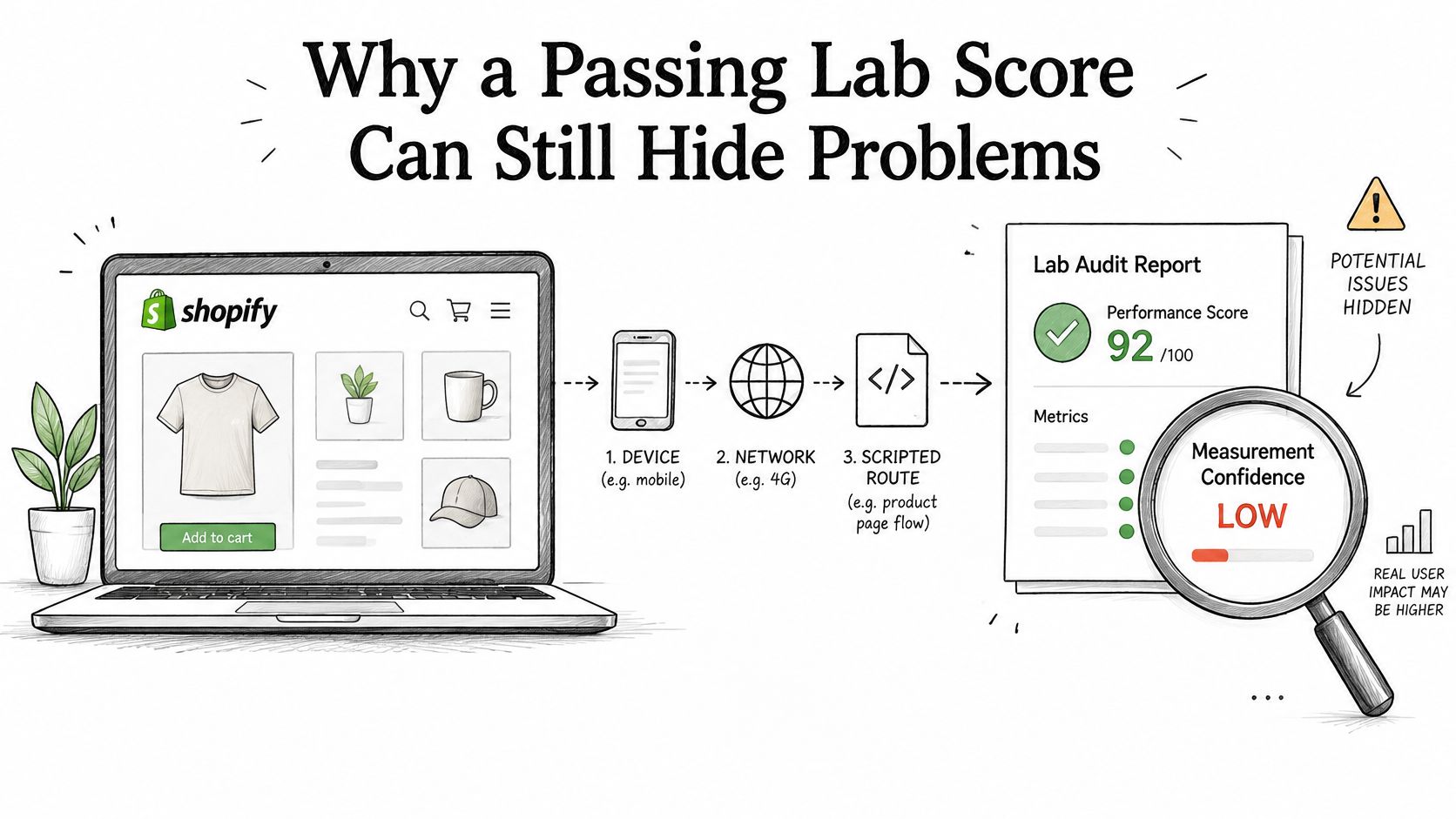
A passing lab result can be accurate and still answer the wrong question. It describes the conditions you tested, not necessarily the shoppers, markets, and interactions that matter to your store.
Google's Core Web Vitals guidance grounds the assessment in real-world experience. Public field coverage can be absent for low-traffic URLs, new properties, or pages that aren't publicly discoverable, while Search Console covers indexed URLs rather than every store experience.
<a id="give-confidence-its-own-finding"></a>
Give confidence its own finding
Use explicit evidence labels rather than forcing every template into pass or fail:
- URL-level field evidence: A directly relevant production reading exists for the tested URL and device category.
- Origin-level evidence only: The reading describes the broader site, not the specific template.
- Lab evidence only: You can reproduce behavior, but production representativeness remains unverified.
- Insufficient evidence: Coverage is too limited to support a dependable conclusion.
A product URL with healthy origin-level figures hasn't necessarily demonstrated healthy product-page interactions. Label every number with its scope so readers don't mistake a broader aggregation for direct evidence.
Low measurement confidence is an actionable finding. It tells the team to improve coverage before making a stronger performance claim.
<a id="reconcile-different-populations"></a>
Reconcile different populations
Compare CrUX with first-party real-user monitoring, but don't expect identical results without checking their populations. Segment your own monitoring by template, mobile versus desktop, and market where your collection supports it.
A difference may indicate that shoppers in a particular segment encounter a problem your controlled test didn't reproduce. It can also indicate different sampling, navigation behavior, or measurement coverage.
Field reporting isn't a permanent certification. Search Console's Core Web Vitals report documentation states that URLs with no data during the previous 28 days are removed from validation history, reinforcing the need to interpret reporting as a rolling measurement.
After migration, treat redirect destinations, gated account flows, and rebuilt templates without stable field evidence as unverified, not passing. Carry that status into the final recommendation and assign an owner to revisit it.
Keep performance findings within the broader Shopify SEO review, without treating a healthy performance assessment as proof that relevance, indexing, or migration continuity is secure.
<a id="run-your-first-audit-this-week"></a>
Run Your First Audit This Week
Finish the week with an evidence sheet and a tested change, not a folder of disconnected screenshots. Use this working schedule to keep the investigation manageable.
- Monday: Build the template inventory and copy the threshold table into your sheet. Leave unknown results blank rather than guessing.
- Tuesday: Check Search Console and PageSpeed Insights. Record device category, reporting scope, and every coverage gap.
- Wednesday: Reproduce the most important failure in Chrome DevTools. Save the trace and write a cause that another developer can verify.
- Thursday: Deploy the highest-priority confirmed fixes in controlled changes. Start with a shared section when the same cause affects several templates.
- Friday: Retest the buying tasks, document deployment dates, and assign confidence labels. Schedule a production-data review rather than declaring success from the deployment test.
If you'd prefer an outside check of template coverage and fix order, we offer a free Store Audit for stores already on Shopify. You can also complete the initial segmented checks yourself before deciding whether additional help is necessary.
Start with your own store: open Search Console, separate mobile from desktop, and map a failing URL group to its Shopify template. That creates a concrete investigation instead of another score to chase.
United Victory Technologies audits and improves page speed and Core Web Vitals on existing Shopify stores, and our Shopify Theme Developers address image handling, script loading, and layout decisions from the start. Visit United Victory Technologies to request a free Store Audit for your existing Shopify store and get an outside review of what to investigate and fix first.