
Magento 1 to Magento 2 Data Migration: Steps and Pitfalls
Plan your Magento 1 to Magento 2 data migration: scope products, customers and orders, map custom data, run dry runs and set a rollback plan.
A Magento 1 to Magento 2 data migration can hit every target on row counts and still break the store. Timed reports shift, customer segments sit inactive, and a bespoke price rule stops applying, even though products, customers, and orders all arrived. You're not really moving a database. You're transferring behavior to a re-architected application, and behavior is where this work fails.
Table of Contents
- Magento 1 to Magento 2 Migration Phases at a Glance
- What Migrates Automatically and What Needs Separate Handling
- Inventory Modules and Custom Data Before You Move Anything
- How to Run the Dry Run and Final Delta Migration
- Validation Checks and Acceptance Thresholds
- Rollback Options and the Cutover Freeze
- Confirm Go-Live and Watch the First 30 Days
<a id="magento-1-to-magento-2-migration-phases-at-a-glance"></a>
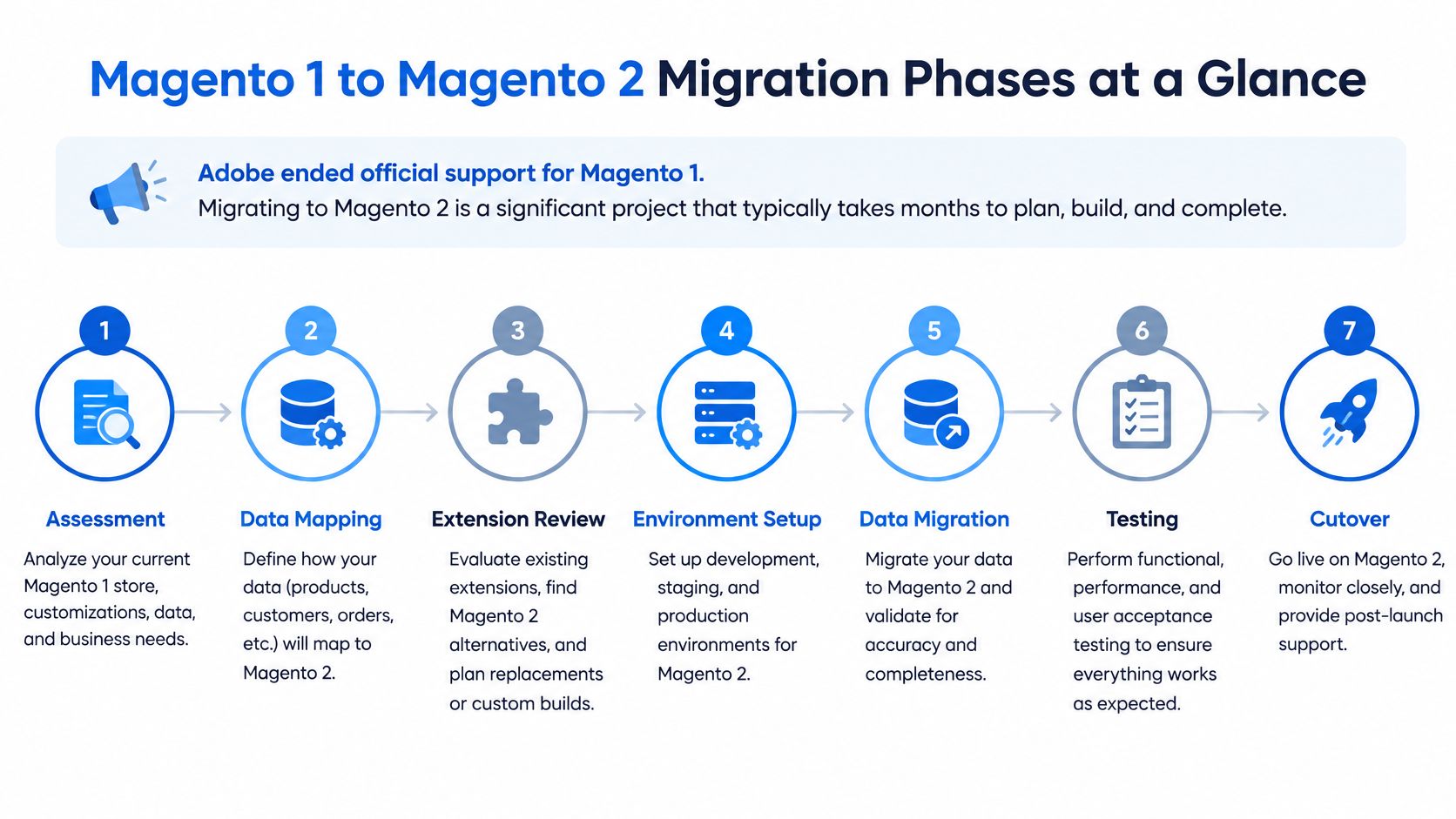
Magento 1 to Magento 2 Migration Phases at a Glance
Magento 2 reached its stable release on November 17, 2015, and Adobe ended official support for Magento Commerce 1.14 and Magento Open Source 1 on June 30, 2020, which the Adobe final Magento 1 security bulletin of June 22, 2020 covered for Magento Commerce 1.14.4.5 and earlier and Magento Open Source 1.9.4.5 and earlier. That left roughly 4 years and 7 months between the two dates. Stores that stayed put stopped receiving Adobe security fixes, so deferred technical debt became a security and compliance problem.
Because Magento 2 isn't a compatible continuation of the old code, you can't copy the installation and call it done. You map and validate products, customers, orders, configuration, content, and custom functionality into new structures. For budgeting, WebMeridian's 2025 Magento cost estimate put a full project at approximately 180 to 700 hours, with the data-migration stage alone taking 40 to 120 hours. WebMeridian's 2025 migration cost range put the typical cost at between $3,800 and $25,000. Treat both as third-party starting ranges. Replace them once you've inventoried your own store.
<a id="the-seven-phases-with-owners-and-gates"></a>
The Seven Phases With Owners and Gates
Put each phase on one page with a named owner, a date, and a go or no-go gate.
- Scope and inventory: Entities, store views, modules, and custom tables are listed and classified.
- Environment: The Magento 1 database is cloned, Magento 2 is installed, and the new database is backed up.
- Mapping: Renamed tables and fields get explicit map files.
- Repeated dry runs: Settings, data, and delta run in that order until clean.
- Reconciliation: Counts and financial totals match or carry documented reasons.
- Rollback path and source freeze: Triggers are agreed before anyone touches traffic.
- Go-live and the first 30 days: Finance, support, and engineering sign off before decommissioning.
I would not approve a date until every phase has an owner who can say no. A timeline without a gatekeeper is just optimism with formatting.
<a id="what-migrates-automatically-and-what-needs-separate-handling"></a>
What Migrates Automatically and What Needs Separate Handling
Start here, not with the tooling. The table below separates what moves by default from what needs a decision, because the second column is the one teams forget until support tickets expose it.
<a id="magento-1-data-classes-and-how-they-migrate"></a>
Magento 1 Data Classes and How They Migrate
| Data class | Migrates by default | Action needed |
|---|---|---|
| Products and catalog | Yes, with map files where structures differ | Check configurable links, attributes and media paths |
| Customers and accounts | Yes | Confirm password handling and account states |
| Orders, invoices, shipments, credit memos | Yes | Decide how legacy and new order numbers coexist |
| CMS pages and media | Yes | Verify media references inside content |
| Logs and quotes | May need handling | Decide whether to keep, archive or discard |
| Recently viewed and compared products | May need handling | Accept the loss or rebuild from analytics |
| Visitors | May need handling | Archive if reporting needs it |
| Event-specific categories and promotional rules | May need handling | Recreate and retest |
| Timezone settings | No | Set manually in Magento 2 and retest time-based reports |
| Customer segments | Must be resaved | Resave and validate segment membership |
| Custom and extension tables | Only with map files or custom handling | Classify and build a replacement |
Three rows surprise teams most. First, Adobe's data migration best practices note that logs, quotes, recently viewed or compared products, visitors, event-specific categories, and promotional rules may need deliberate handling rather than automatic migration. That's not trivia. Abandoned cart tooling, merchandising, and reporting can all depend on those records.
Second, timezone settings don't transfer. A multi-region merchant can migrate every order correctly and still have daily tax and revenue reports split at the wrong hour, because finance compares figures by local day. Those failures don't throw errors. They produce plausible numbers that are wrong.
Third, customer segments must be resaved after migration, and sales-entity numbering changes for new orders, invoices, shipments, credit memos, and RMAs. Skip the resave and segmentation-driven promotions can sit there looking configured while matching nobody. Skip the numbering decision and customer service gets two orders that look alike, finance can't reconcile sequences, and your ERP complains.
Practical rule: Set a system-of-record policy for every data class before the first dry run, keep legacy identifiers visible for support and audit, and write down how old and new sales numbers coexist.
The question to ask isn't whether order history migrated. It's which historical records remain operational, how identifiers behave from day one, and what must be reconciled before finance, CRM, fulfillment, and customer service go live.
<a id="inventory-modules-and-custom-data-before-you-move-anything"></a>
Inventory Modules and Custom Data Before You Move Anything
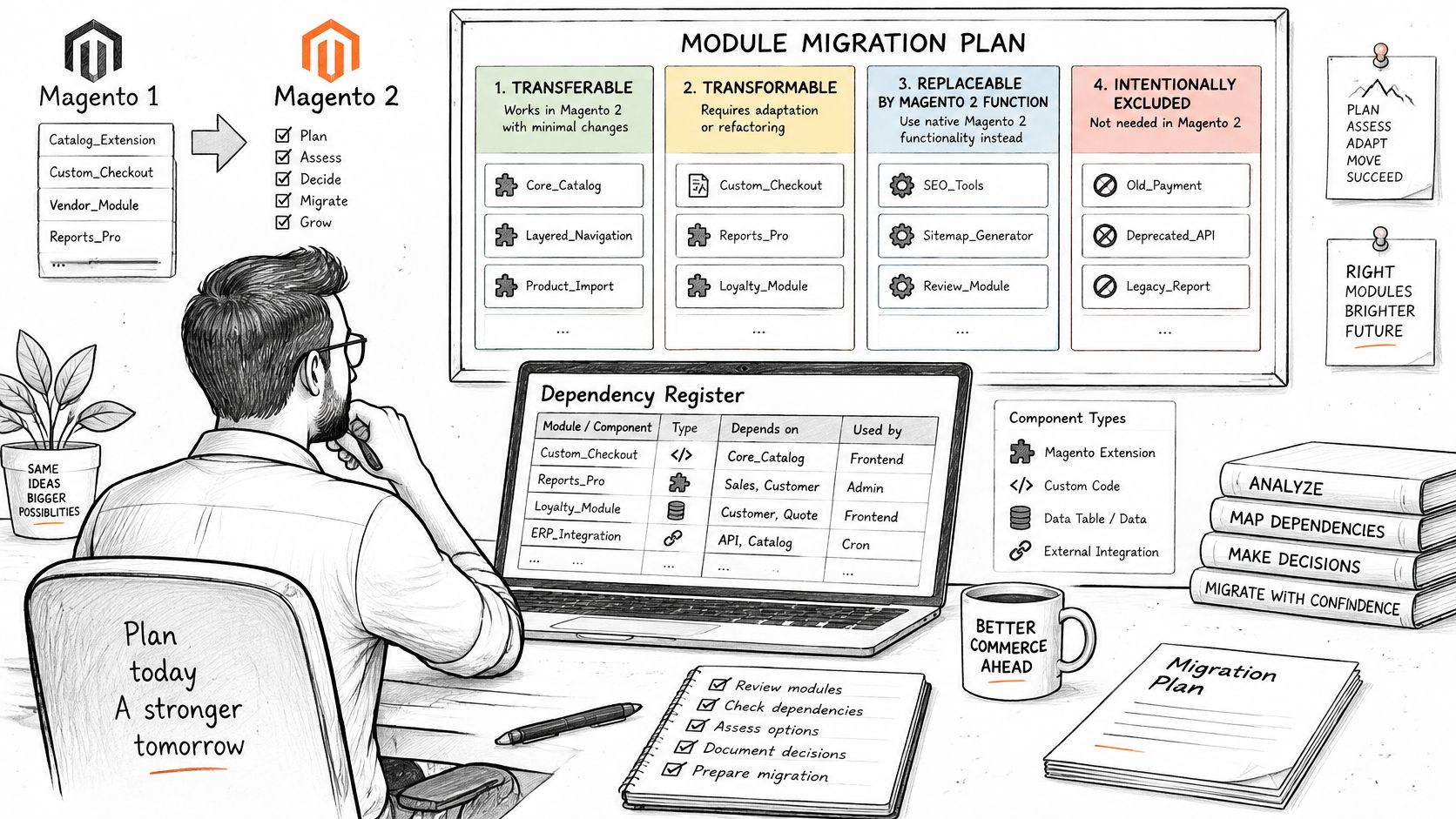
A clean core-data migration can conceal the biggest risk in the project, missing behavior rather than missing records. I'd start by classifying every Magento 1 module as transferable, transformable, replaceable by a Magento 2 function, or intentionally excluded. Anything you can't classify isn't ready to migrate.
Adobe's guidance on migrating to Magento 2 is clear that tooling covers core customers, catalog data, orders, and configuration, while custom data, admin rights, media files, and certain technical customizations don't necessarily transfer cleanly. On older installs, bespoke code is often undocumented and its data sits in custom tables outside the standard schema. A generic line item called custom development won't surface that. A register will.
<a id="customization-dependency-register"></a>
Customization Dependency Register
| Item | What to record | Go-live rule |
|---|---|---|
| Extension or custom feature | Tables, APIs, cron jobs, admin workflow, storefront behaviour | Transfer, transform, replace with a Magento 2 function, or exclude, each with an owner |
| Extension attributes | Attribute codes and where they render | Map or rebuild before the dry run |
| Customer passwords and account states | Hash method and locked or disabled flags | Sample logins succeed after migration |
| Configurable products | Parent-child links | A configurable order still prices correctly |
| Tax and sales rules | Rule conditions and tax classes | A known order recalculates |
| Payment and shipping codes | Method codes on historical orders | History displays and a new checkout completes |
| CMS and media | Page references and file paths | Key pages have no broken images |
| Store views and URL rewrites | View codes and indexed URLs | Every indexed URL resolves |
| Custom B2B price table | Rows the standard catalog does not hold | A wholesale order matches the old price |
| Data outside the Magento schema | ERP files or external stores | A named system of record |
Say a merchant runs a custom B2B price table that Magento 2's standard catalog can't reproduce. The products migrate fine, the customers migrate fine, and then the first wholesale order prices at retail. Catch that in the register and you rebuild the behavior, then test it against real wholesale orders before cutover. Miss it and you've found out with live traffic.
Run a schema comparison early, too. Identical table structures can move automatically, while differing structures halt the process until map files or custom handling exist. Give every register item a test owner and acceptance criteria covering backorders, subscriptions, B2B pricing, returns, promotions, search, tax, and ERP sync. Teams planning a wider platform move can borrow the same discipline from this Shopify migration readiness checklist, since the inventory questions are nearly identical.
Any module with no owner or no replacement decision is a go-live blocker. Exclusion is a valid decision, but it has to be a decision, not a discovery.
<a id="how-to-run-the-dry-run-and-final-delta-migration"></a>
How to Run the Dry Run and Final Delta Migration
Run this sequence in order, and repeat it until it's boring. The full workflow in Adobe's guide to how migration works is the authoritative reference, but the steps below are the ones that tend to eat projects.
<a id="setting-up-a-repeatable-run"></a>
Setting Up a Repeatable Run
- Clone the Magento 1 database. Never test against production, because a dry run writes data and you'll want to rerun it. The common slip is pointing the tool at the live database to save an afternoon.
- Cleanse only the clone. Remove or archive obsolete data you're not keeping, such as logs, duplicate URL rewrites, and unused store views. Write down every deletion so a later count gap has a reason attached to it.
- Install Magento 2 on infrastructure that meets its system requirements. A migration that crawls on staging tells you nothing useful about your cutover window.
- Back up the new Magento 2 database before any import. Without that clean restore point, each failed run costs you a rebuild instead of a reset.
- Verify network connectivity and database privileges. Keep both the clone and the new database reachable by the tool. If Magento 1 binary logging is enabled, configure the required MySQL function-creation privilege or setting, because this is the error that stops first runs dead.
- Don't create products, categories, or attributes in Magento 2 yet. Source records can overwrite them during the run. Merchandising teams keep doing this, so lock it down in writing.
<a id="running-settings-data-and-delta"></a>
Running Settings, Data, and Delta
- Run Adobe's Data Migration Tool in order: settings, then data, then delta. The tool compares schemas, records progress in logs, runs integrity checks, and applies mapping files for changed table or field names. Read the logs instead of just checking whether the process finished, because a completed run with unmapped tables is a failed run that hasn't told you yet.
- Repeat the dry run until validation is clean, and time each run. Those durations are what make your final window realistic. A first run that takes an evening is fine. Discovering that on cutover night isn't.
- Run the final delta during a controlled freeze. Stop Magento 1 cron jobs, halt catalog and configuration changes, and allow only operational order actions such as shipping, invoicing, and credit memos. Anything else creates data your delta wasn't built to reconcile.
A clean run looks specific, not vague. No unmapped tables, integrity checks passed, and counts ready for reconciliation. Merchants weighing a different destination entirely can compare this discipline with the process for migrating from Magento to Shopify, where the data checks are similar and the architecture work differs.
If your team can't restore the empty Magento 2 database and rerun the whole sequence from a written checklist, you don't have a migration procedure. You have one person's memory.
<a id="validation-checks-and-acceptance-thresholds"></a>
Validation Checks and Acceptance Thresholds
Row counts alone don't prove a migration worked. They prove rows arrived. A store can match on counts while segments stay inactive, tax recalculates differently, and an ERP feed drops orders. So set your pass criteria before the dry run, because Adobe's migration planning documentation doesn't provide a statistically valid global success-rate figure. Any percentage a vendor quotes you is vendor-specific unless they publish the sample and the definition of success behind it.
<a id="dry-run-validation-checks-and-pass-criteria"></a>
Dry-Run Validation Checks and Pass Criteria
| Check | What to compare | Pass when |
|---|---|---|
| Row counts | Source vs target for products, customers and orders | Counts match, or each gap has a documented reason |
| Financial totals | Order grand totals, tax and refunds | Aggregates reconcile to the cent |
| Customer records | Accounts, addresses and password access | Logins work for a sampled set of accounts |
| URL mappings | Source URL rewrites vs target redirects | Every indexed URL resolves to a target |
| Search and catalog | Product visibility and search results | Sampled searches return the expected products |
| Checkout | Test orders for each payment and shipping method | Orders complete end to end |
| ERP and CRM feeds | Sync output after the delta run | Reconciled within the agreed tolerance |
| Timezone-sensitive reports | Sales reports by local day | Figures match finance's source report |
Run these after every trial, not just the final one. The Map step compares Magento 1 and Magento 2 tables, including extension-created ones, and differing structures can stop the process unless explicit map files or custom handling exist. That's useful, but it only validates structure. You still have to test storefront search, checkout, account login, order history, and refunds as a customer would, then reconcile ERP and CRM feeds as operations would.
Learn to tell two kinds of gap apart. A gap with a documented reason, such as logs you deliberately excluded and deleted from the clone, is fine and expected. An unexplained gap blocks cutover, full stop in practice, because nobody can tell you whether it's cosmetic or revenue.
Acceptance test I'd insist on: Pick real orders from the old store, recalculate them in Magento 2, and make finance confirm the totals to the cent. If that check can't pass, nothing else matters yet.
Adobe also recommends removing obsolete or redundant source data before migrating and keeping both databases accessible to the tool. That keeps comparisons honest, since you're validating data you intend to keep.
<a id="rollback-options-and-the-cutover-freeze"></a>
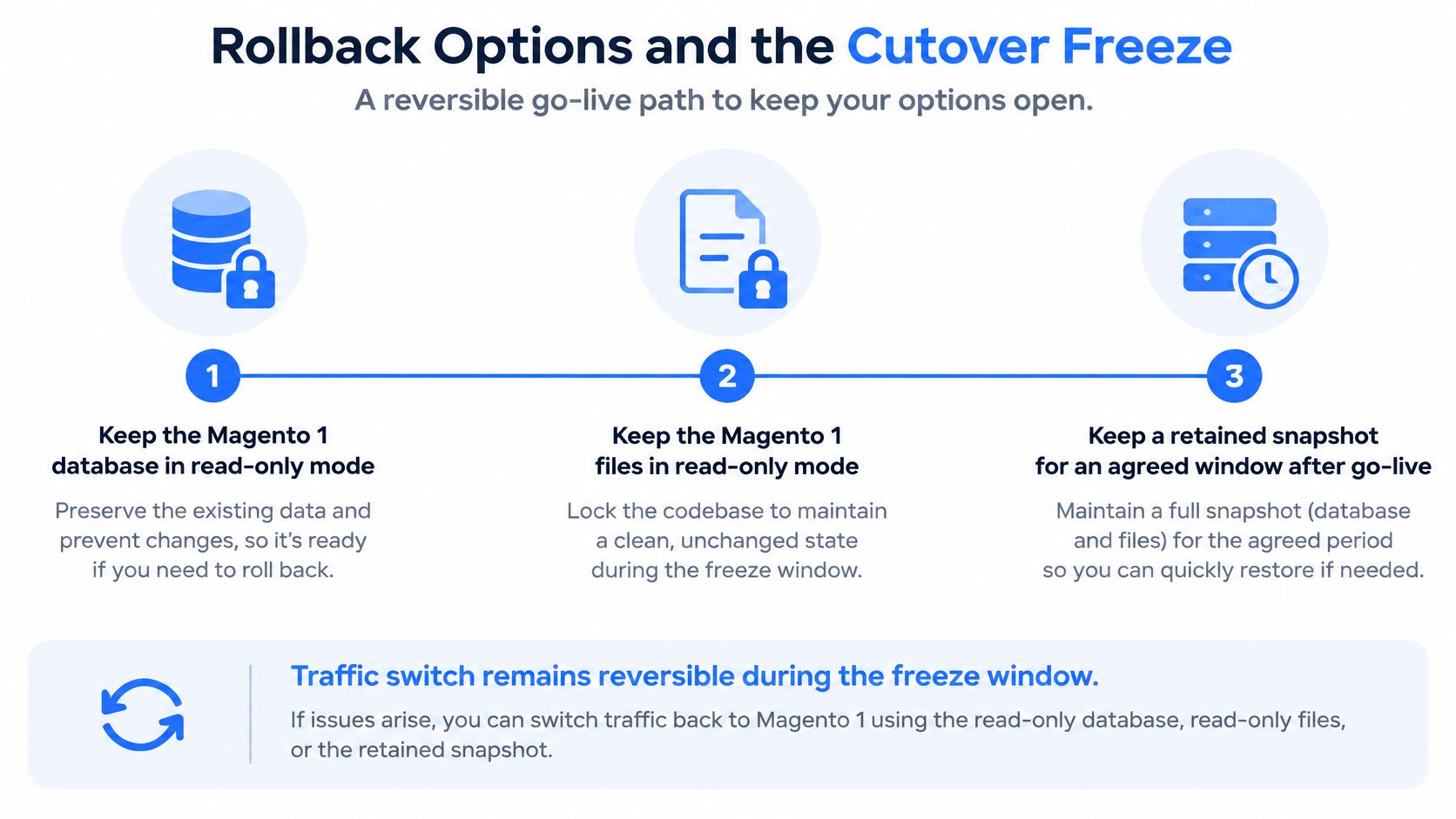
Rollback Options and the Cutover Freeze
Describe the way back before you need it, and decide who can call it. Rollback triggers should be concrete and agreed in advance, not improvised at midnight while orders stall.
<a id="triggers-worth-naming-in-advance"></a>
Triggers Worth Naming in Advance
- Failed payments: Checkout error rates above a threshold your payment owner sets.
- Order-sync errors: ERP or fulfillment rejects orders beyond an agreed count.
- Missing customers: Login failures or absent accounts that reconciliation didn't predict.
- Broken redirects: Indexed URLs dead-ending at a rate your SEO owner won't accept.
Now the hard limit. Orders placed on Magento 2 after cutover won't flow back to Magento 1 automatically. Decide in advance whether you'd accept those orders where they are, re-key them into the old system, or sync them back with a script you've tested. That single decision changes how brave you can be about staying live, so don't leave it open.
<a id="the-cutover-sequence"></a>
The Cutover Sequence
- Set rollback triggers and their owner. One person decides, on criteria written beforehand.
- Start the freeze and stop Magento 1 cron jobs. Announce the window to customers and internal teams well ahead, and schedule it in a low-order period.
- Lower DNS time-to-live well before cutover. That keeps the traffic switch reversible while you still need it to be.
- Run the final delta and validate against your thresholds. Don't switch traffic on hope.
- Switch traffic and watch orders closely for the first hours. Payments, the order grid, and sync queues tell you the truth fastest.
- Keep Magento 1 read-only for the agreed window. Hold the database, the files, and a retained snapshot, and decommission only after finance and customer service sign off.
The freeze is the business cost of this plan, so price it with care. Hours without catalog changes are tolerable. Days of uncertainty because nobody defined rollback aren't.
<a id="confirm-go-live-and-watch-the-first-30-days"></a>
Confirm Go-Live and Watch the First 30 Days
The cutover owner signs off on a short list, and every item needs a yes or a written exception. Dry-run thresholds are met. Rollback has been rehearsed, with a lowered DNS TTL and a read-only Magento 1 database, file set, and snapshot waiting. Every module on the register has an owner and acceptance criteria. The freeze is active, Magento 1 cron is stopped, and support knows the cutover time plus how to tell legacy and new order numbers apart.
<a id="what-to-check-and-when"></a>
What to Check and When
- First day: Place and refund an order on each live payment and shipping method, confirm admin login, and watch the order grid continuously.
- First week: Reconcile order grand totals, tax, and refunds to the cent, confirm ERP and CRM output after the delta, resave customer segments, and spot-check membership.
- Weeks two to four: Compare timezone-sensitive sales reports with finance's pre-migration figures, watch for redirect errors and indexing drops using the same discipline in this complete Shopify SEO guide, and confirm support tools still show the old order id beside the new one.
Decommission Magento 1 only after finance and customer service agree the read-only window can close. That sounds slow, and it's supposed to. The old store is your audit trail until someone with money or customers at stake says otherwise.
Treat the first 30 days as part of the migration, not as aftermath. Most behavior failures surface there, while you can still act on them cheaply.
For teams still scoping the move, we offer a Shopify Migration Readiness Assessment with eight questions that takes about two minutes, giving a scoped view of data, integrations, SEO risk, and a realistic timeline. We also provide Shopify Plus migration services from any platform, including a Migration Assessment for the current stack, if Magento 2 turns out to be a stop rather than a destination.
If you're weighing a Magento move and want the data, integrations, and SEO risks scoped before you commit to a window, start with an assessment from United Victory Technologies and get a realistic timeline for your current stack. Bring your module list and your hardest custom workflow, and we'll tell you plainly what transfers, what gets rebuilt, and what you should retire.